Uptime Status Board on Your TV with POMP Digital Signage
Put your status on the office TV. Create a TV display in Statance, add a Statance status board screen to a POMP playlist and paste the link. POMP draws the board natively, so it works on Apple TV as well as Android TV, iPad and any browser, and it updates within about 30 seconds of a change.
Set up POMP digital signage
Create a TV display in Statance
Go to TV displays → New display. Pick the monitors and servers to show (or leave both empty to show everything), choose dark or light, and copy the link.
Add a Statance screen in POMP
In the POMP dashboard, add a Statance status board screen to a playlist and paste the link. It’s on POMP’s free plan.
Put it on a screen
Play the playlist on an Apple TV, Android TV box, iPad or browser. Long lists page automatically, and problems always sort to the top.
What’s on the screen
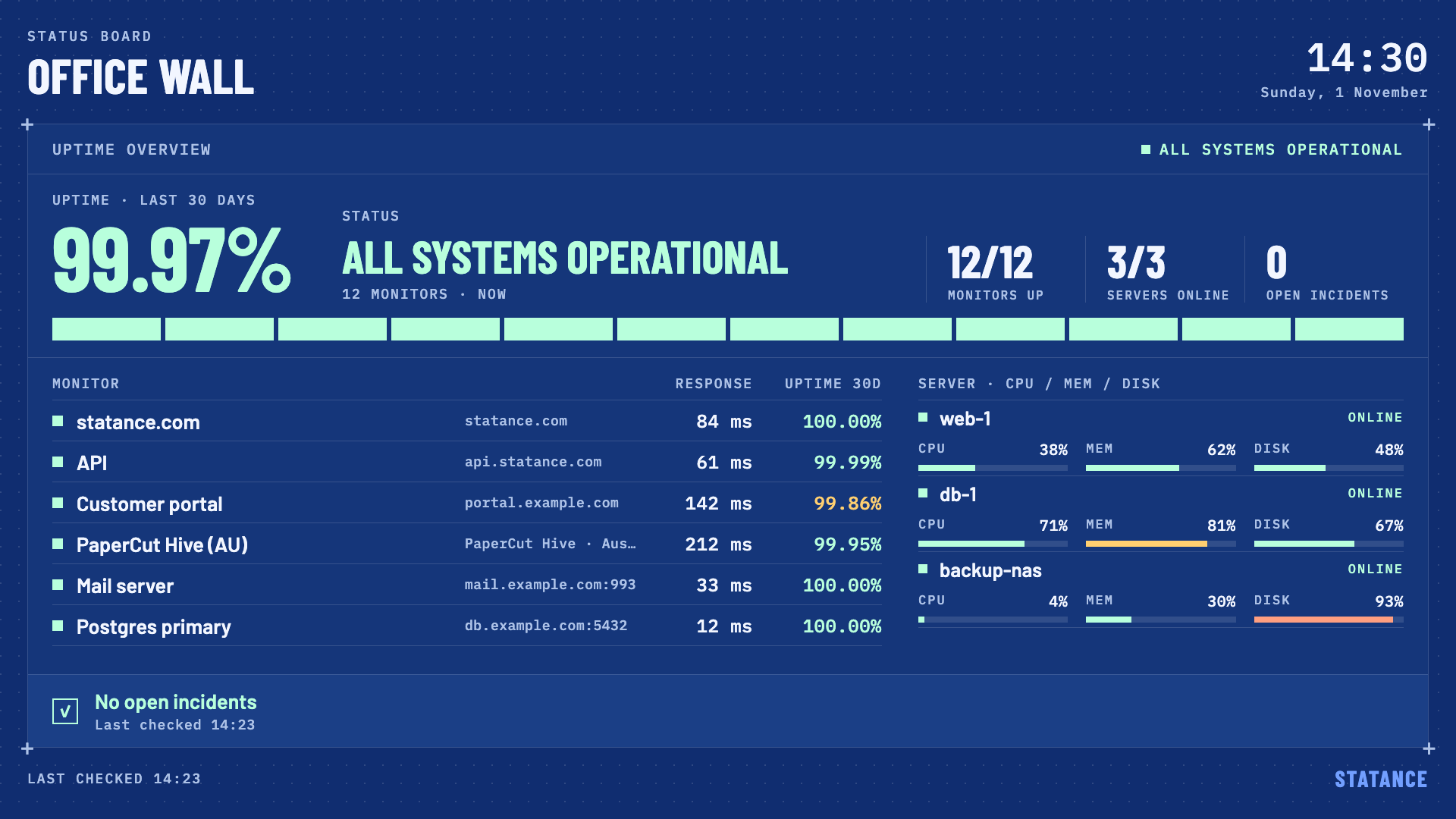
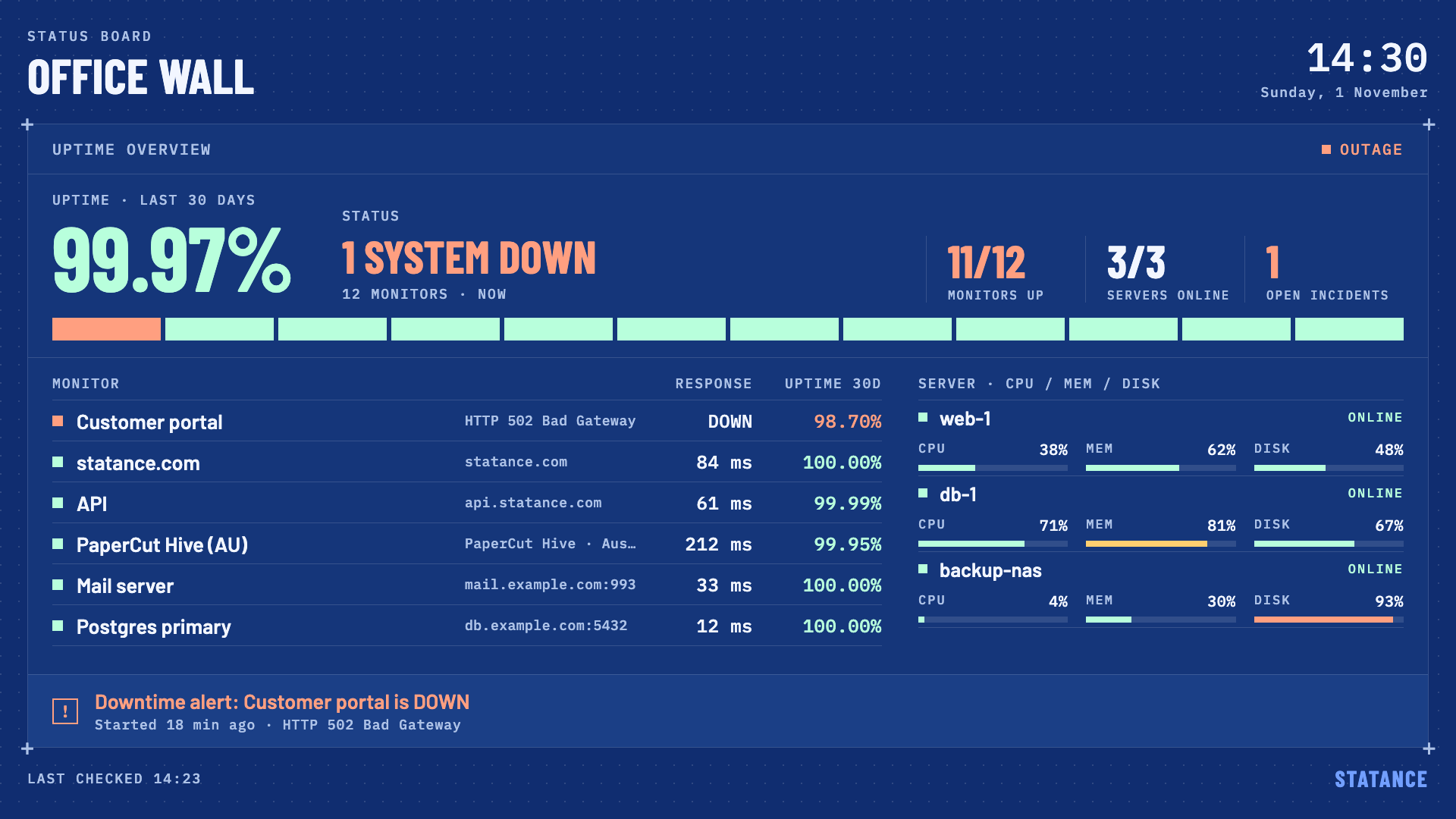
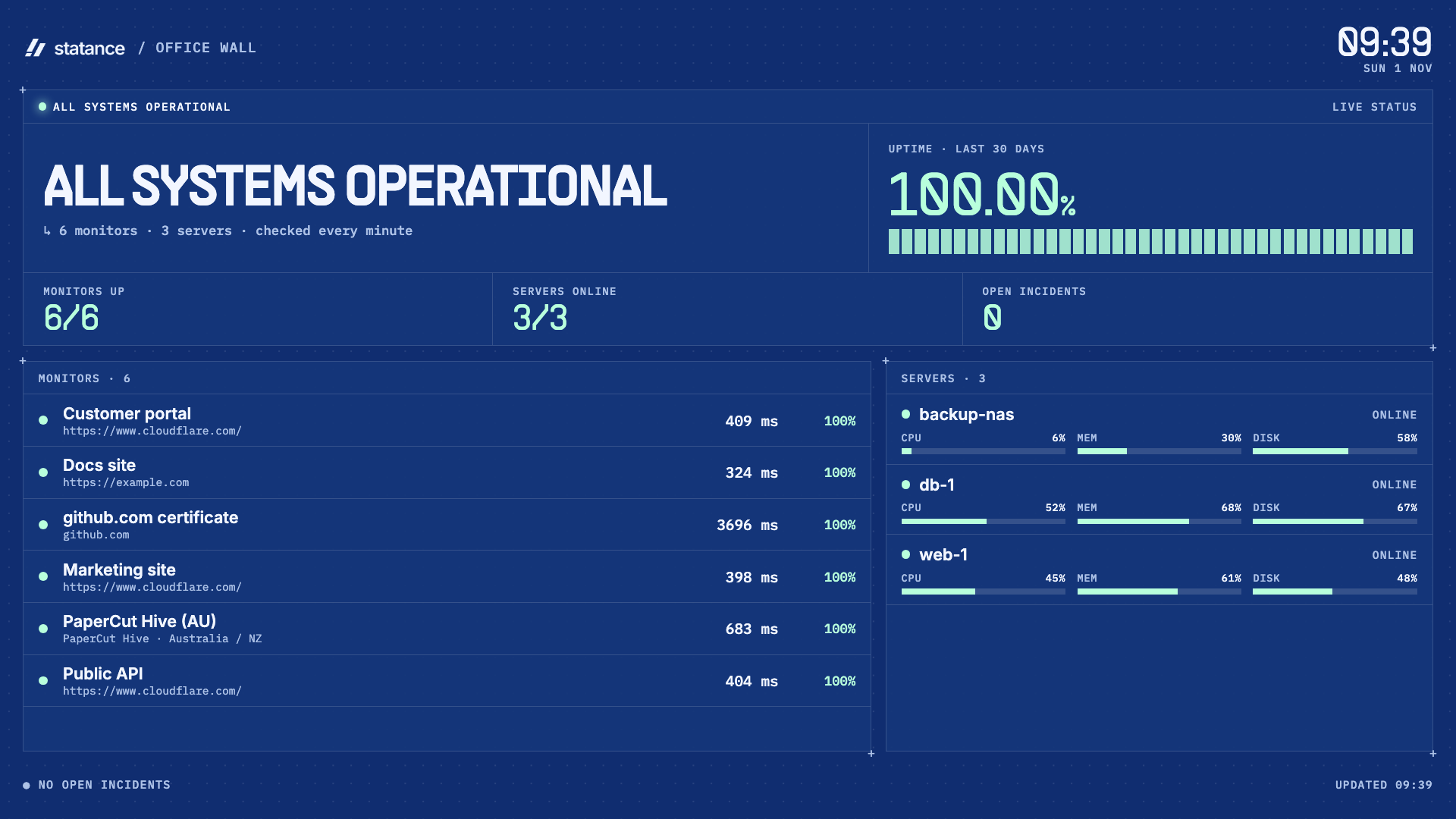
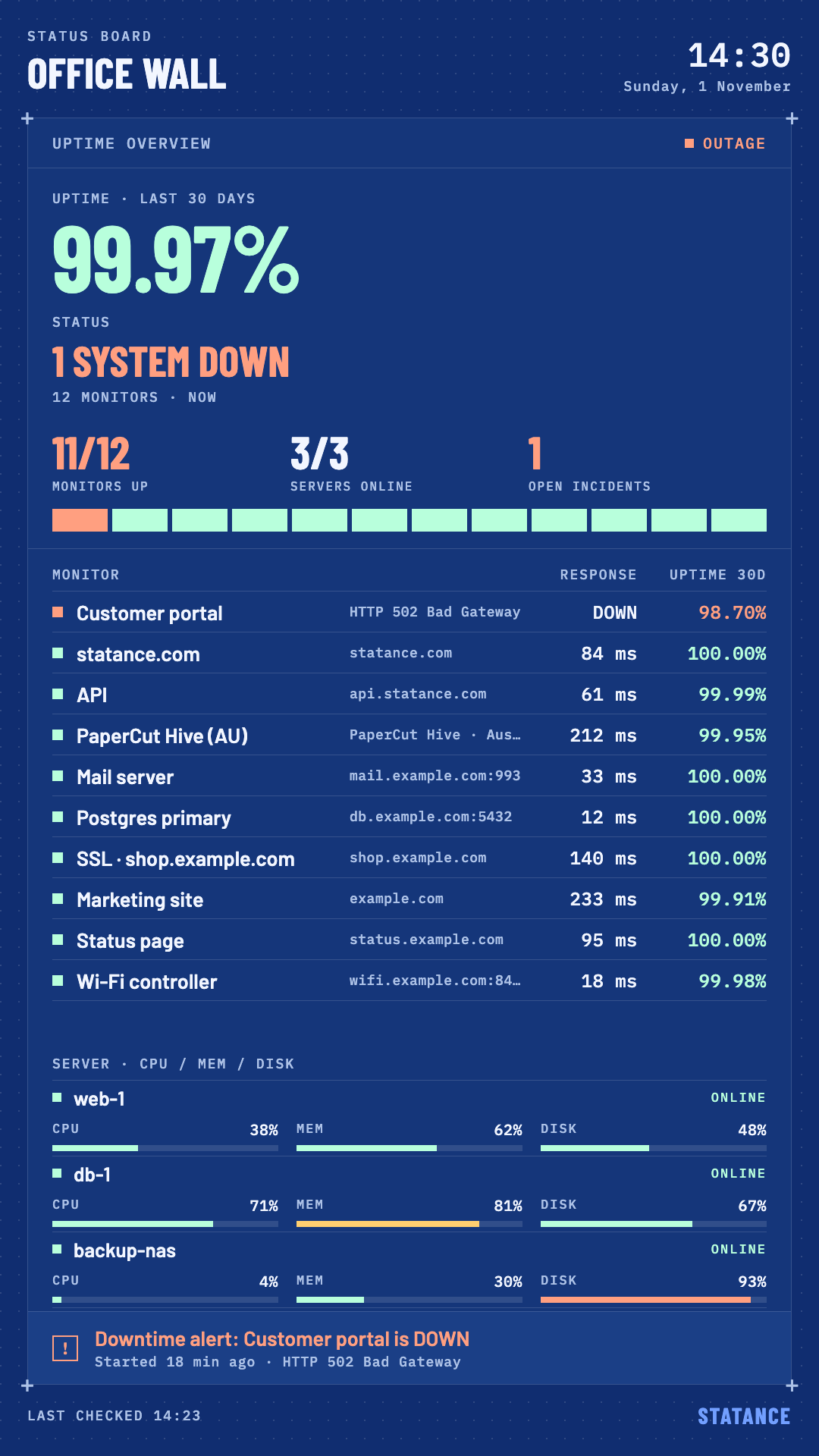
- A big banner: all systems operational, running hot, or what’s down right now
- Monitors up, servers online, open incidents and 30-day uptime at a glance
- Every monitor with its response time and uptime, every server with CPU, memory and disk
- Open incidents across the bottom, with how long they’ve been going
- Landscape and portrait layouts, sized to read from across the room
See it
FAQ
Does it work on Apple TV?
Yes. Apple TV can’t show web pages, so POMP renders the Statance board with its own native components. It works the same on Android TV, iPad and in POMP’s web player.
Is the board public?
Only people with the link can see it. Treat the link like a password; “New link” in Statance revokes the old one instantly.
What does it cost?
TV displays are included on every Statance plan (1 on Free, 5 on Pro, 50 on Business), and the Statance screen is on POMP’s free plan.
Can I use it without POMP?
Yes. Open the display link full screen in any browser: a smart TV browser, Chromecast, Raspberry Pi kiosk or a spare laptop.
 Linux
Linux Docker